Introduction & The Problem
In the rapidly evolving landscape of software development, Artificial Intelligence has become an indispensable co-pilot for many engineers. From generating boilerplate code to debugging complex issues, AI accelerates workflows, improves code quality, and frees up mental bandwidth for more challenging problems. However, this reliance often comes with a significant trade-off: using cloud-based LLM APIs. These services, while powerful, introduce critical challenges:
- Cost Escalation: API calls add up quickly. For individual developers, startups, or even large enterprises, continuous interaction with external LLMs for every line of code, refactor, or explanation can lead to unpredictable and substantial monthly bills.
- Data Privacy & Security: Sending proprietary or sensitive codebases to third-party cloud providers raises severe data privacy and security concerns. Companies operating under strict compliance regulations (e.g., HIPAA, GDPR, SOC2) often face insurmountable hurdles in adopting cloud-based AI coding assistants.
- Latency & Internet Dependency: Relying on external APIs means every AI interaction is subject to network latency. Furthermore, an internet connection is mandatory, limiting productivity in offline or bandwidth-constrained environments.
The consequence of these unresolved problems is a slower, more expensive, and less secure development cycle. Developers might hesitate to leverage AI fully, missing out on productivity gains, or organizations might shy away from AI adoption altogether due to compliance risks.
The Solution Concept & Architecture
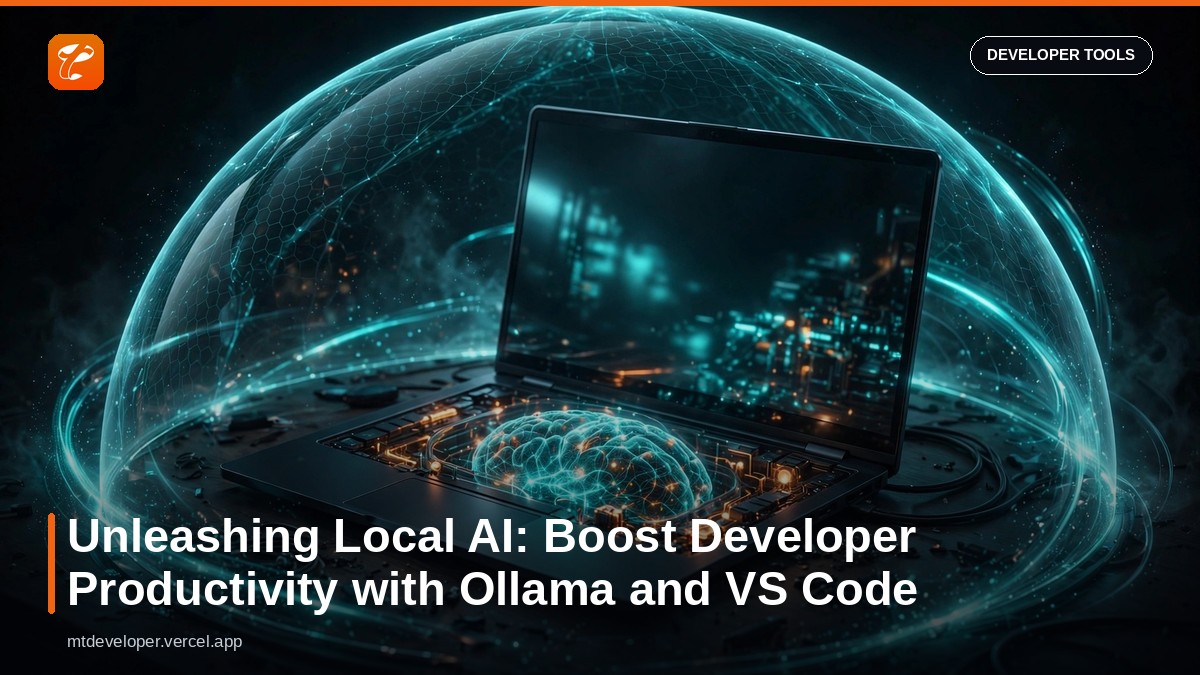
The solution lies in bringing the intelligence home: utilizing Local Large Language Models (LLMs). By running AI models directly on your development machine, you can bypass API costs, ensure data privacy, and achieve real-time, low-latency responses. This approach transforms AI from an external service into an integral, private component of your local development environment. Our architecture centers around two key technologies:
- Ollama: An open-source tool that simplifies running large language models locally. Ollama handles the complex aspects of model management, downloading, and serving, providing a user-friendly API endpoint for local LLM interaction. It supports a wide range of popular models, making it a flexible choice for various coding tasks.
- VS Code Extensions: Modern VS Code extensions, such as
Continue.dev, are designed to integrate seamlessly with local LLM providers like Ollama. These extensions act as the bridge, allowing your IDE to communicate with your self-hosted LLM, offering features like in-line code generation, refactoring, explanation, and debugging assistance.
Architectural Flow:
+-----------------------+
|  VS Code Editor       |
|  (Your Codebase)      |
+-----------+-----------+
            |
            | (API Requests: generate, chat)
            V
+-----------+-----------+
|  VS Code Extension    |
|  (e.g., Continue.dev) |
+-----------+-----------+
            |
            | (HTTP to localhost:11434)
            V
+-----------+-----------+
|  Ollama Server        |
|  (Local Process)      |
+-----------+-----------+
            |
            | (Loads & Runs Model)
            V
+-----------------------+
|  Local LLM Model      |
|  (e.g., CodeLlama,    |
|   DeepSeek-Coder)     |
+-----------------------+
This architecture ensures that your code never leaves your machine, all AI processing happens locally, and you maintain complete control over the models and their configurations.
Step-by-Step Implementation
Let's set up your private, local AI coding assistant.
Step 1: Install Ollama and Download an LLM
First, you need to get Ollama running on your system.
- Download Ollama: Visit the official Ollama website (
https://ollama.com/download) and download the appropriate installer for your operating system (macOS, Windows, Linux). Follow the installation instructions. - Run Your First Model: Once installed, open your terminal or command prompt. You can now pull and run a coding-focused LLM.
codellamaanddeepseek-coderare excellent choices for programming tasks due to their training on extensive code datasets.
To download and start codellama (the default model size is 7B, you can specify larger variants like codellama:13b or codellama:34b if you have sufficient RAM/VRAM):
ollama run codellama
Ollama will download the model (this might take some time depending on your internet speed and the model size). Once downloaded, it will start an interactive chat session. You can type ^D or /bye to exit. To verify Ollama is running and accessible via its API, open a new terminal and run:
curl http://localhost:11434/api/tags
You should see a JSON response listing the models you've downloaded, like {"models":[{"name":"codellama:latest","modified_at":"..."}]}.
Step 2: Install and Configure the VS Code Extension
We'll use the Continue.dev extension, which offers robust support for local LLMs and a user-friendly interface.
- Install
Continue.dev: Open VS Code, go to the Extensions view (Ctrl+Shift+X or Cmd+Shift+X), search for "Continue", and install the extension by "Continue.dev". - Configure
Continue.devto use Ollama:
- After installation,
Continue.devtypically opens a sidebar. You might see a quick setup guide. Click through or close it. - Open your VS Code
settings.json(Ctrl+, or Cmd+, then search for "settings json" and select "Open User Settings (JSON)"). - Alternatively,
Continue.devcreates its own configuration file at~/.continue/config.json. You can open this file directly. - Add or modify the
modelsarray within yourconfig.json(orsettings.jsonunder thecontinuekey if you're managing it there) to include your Ollama models. Here's an example configuration:
{
      "models": [
        {
          "name": "Ollama - CodeLlama",
          "provider": "ollama",
          "model": "codellama",
          "temperature": 0.5,
          "system_message": "You are a senior software engineer helping me write clean, efficient, and well-documented code."
        },
        {
          "name": "Ollama - DeepSeek Coder",
          "provider": "ollama",
          "model": "deepseek-coder",
          "temperature": 0.5,
          "system_message": "You are an expert fullstack developer. Provide concise and accurate solutions."
        }
      ],
      "slash_commands": [
        {
          "name": "/refactor",
          "description": "Refactor the selected code for better readability and performance.",
          "prompt": "Refactor the following code to improve its readability, performance, and adherence to best practices. Focus on [JavaScript/Python/etc] conventions."
        },
        {
          "name": "/explain",
          "description": "Explain the selected code in detail.",
          "prompt": "Explain the following code in simple terms, focusing on its purpose and functionality."
        }
      ]
    }
Explanation of configuration fields:
name: A display name for the model in theContinue.devUI.provider: Set to"ollama"to indicate it's an Ollama model.model: The exact model name you pulled withollama run(e.g.,codellama,deepseek-coder).temperature: Controls the randomness of the output (0.0 for deterministic, higher for more creativity).system_message: A critical instruction to guide the LLM's persona and behavior. This improves response quality significantly.slash_commands: Define custom commands for quick actions, pre-filling prompts, or performing specific tasks.
Step 3: Hands-on AI-Powered Coding
Now that everything is set up, you can start using your local AI assistant:
- Access the Continue.dev Panel: Click the
Continueicon in your VS Code sidebar. - Select Your Model: At the top of the
Continue.devpanel, ensure your desired Ollama model (e.g., "Ollama - CodeLlama") is selected. - Interact with Your Code:
- Code Generation: Type a prompt directly into the chat input, e.g., "Write a Python function to calculate the Nth Fibonacci number recursively." The AI will generate code which you can then insert.
- Refactoring: Select a block of code in your editor. In the
Continue.devchat, type/refactor(if you configured it) or a custom prompt like "Refactor this JavaScript function to use async/await and make it more robust with error handling." The AI will suggest changes. - Explanation: Select a complex function or block of code. In the chat, type
/explainor "Explain this Java code and its purpose." The AI will break it down. - Debugging/Fixing: Select code with a known issue. Prompt: "Find the bug in this TypeScript component and suggest a fix." The AI can often identify common errors and propose solutions.
This immediate, private feedback loop transforms your coding experience, allowing for rapid iteration and problem-solving without external dependencies.
Optimization & Best Practices
To maximize the effectiveness of your local LLM setup:
- Hardware Matters:
- GPU is King: Local LLMs, especially larger ones, perform significantly better with a dedicated GPU (NVIDIA with CUDA, or Apple Silicon with Metal). Ensure your drivers are up to date. Ollama automatically uses your GPU if detected.
- RAM/VRAM: The larger the model (e.g., 34B vs 7B), the more RAM/VRAM it requires. Monitor your system resources. If performance is slow, try a smaller quantized model.
- Model Selection & Quantization:
- Specialized Models: For coding,
codellama,deepseek-coder,phi-3, andstarcoderare top choices. Experiment to find which one best suits your language and task.phi-3(Microsoft) is known for being powerful for its size. - Quantization: Ollama models often come in different quantizations (e.g.,
q4_0,q8_0). Lower quantization (e.g.,q4_0) uses less memory and runs faster but might have slightly reduced accuracy. Higher quantization (e.g.,q8_0) uses more resources for better quality. Choose based on your hardware and performance needs.
- Effective Prompt Engineering:
- Clarity and Conciseness: Be direct with your instructions. Avoid ambiguity.
- Context is Key: Always provide relevant code snippets, file types, and desired output formats (e.g., "Return only the Python function, no explanation.").
- System Messages: Leverage the
system_messagein yourContinue.devconfig to set the AI's role (e.g., "You are an expert Python developer.") and constraints. - Iterative Refinement: If the initial response isn't perfect, refine your prompt. Ask follow-up questions or provide more specific examples.
- Few-Shot Learning: For complex tasks, provide a couple of input-output examples to guide the model.
- Local LLM Management:
- Regularly check for updated models (
ollama pull). - Remove unused models (
ollama rm) to free up disk space.
- Integrating with CI/CD (Advanced): While direct VS Code integration is for individual productivity, you can script Ollama's API for automated tasks like code style checks, basic vulnerability scanning, or generating docstrings in your CI/CD pipeline. This involves using the
ollamaCLI or HTTP API in your build scripts, offering a powerful, private alternative to cloud-based code analysis tools.
Business Impact & ROI
Adopting local LLM solutions with Ollama delivers tangible business value across multiple dimensions:
- Significant Cost Reduction: Eliminating per-token API charges for frequently used AI coding assistants can lead to massive savings, especially for teams of developers. Over a year, this can translate to thousands, or even hundreds of thousands, of dollars saved in cloud service fees.
- Enhanced Data Security and Compliance: By keeping all code and AI processing on-premises, organizations mitigate the risk of intellectual property leakage and easily comply with stringent data privacy regulations like GDPR, HIPAA, and custom enterprise security policies. This builds trust and avoids costly legal penalties.
- Boosted Developer Productivity: Low-latency, real-time AI assistance directly in the IDE reduces context switching and wait times, enabling developers to write, refactor, and debug code faster. This translates into quicker feature delivery, fewer bugs, and higher overall team efficiency.
- Uninterrupted Workflow: Developers can work effectively even without an internet connection, crucial for remote teams, secure environments, or travel. The reliability of an always-available local AI assistant prevents workflow disruptions.
- Innovation and Experimentation: Removing cost barriers allows developers to freely experiment with AI capabilities, fostering a culture of innovation without budget constraints. Teams can explore new AI-driven coding patterns, test custom prompts, and integrate AI more deeply into unique workflows.
- Reduced Vendor Lock-in: Relying on open-source, local solutions like Ollama provides flexibility. Businesses are not tied to a single cloud provider's LLM offerings or pricing structures, allowing them to switch models or providers as needs evolve.
Conclusion
The era of costly, privacy-compromising cloud-only AI for developers is drawing to a close. By embracing local LLMs with Ollama and integrating them directly into development environments like VS Code, engineers and businesses can reclaim control over their AI tools. This shift doesn't just promise enhanced developer productivity and superior code quality; it delivers significant ROI through reduced costs, uncompromised data security, and an independent, future-proof approach to software development. It's time to unleash the full potential of AI, privately and powerfully, directly at your fingertips.